WordPress powers a huge share of the web, roughly four in ten websites according to W3Techs. That popularity is exactly why attackers love it. One weakness in a popular plugin can expose millions of sites at once, and automated bots scan for them around the clock.
The good news: WordPress itself is very secure, and most attacks succeed because of a few predictable mistakes. In this guide, we’ll explain where the real risks are in 2026, give you a 15-step WordPress security checklist and walk through what to do if your site has already been hacked.
The short version
- WordPress security problems come mostly from plugins and themes, not WordPress core.
- Attackers start exploiting new vulnerabilities within hours, so slow updates are a real risk.
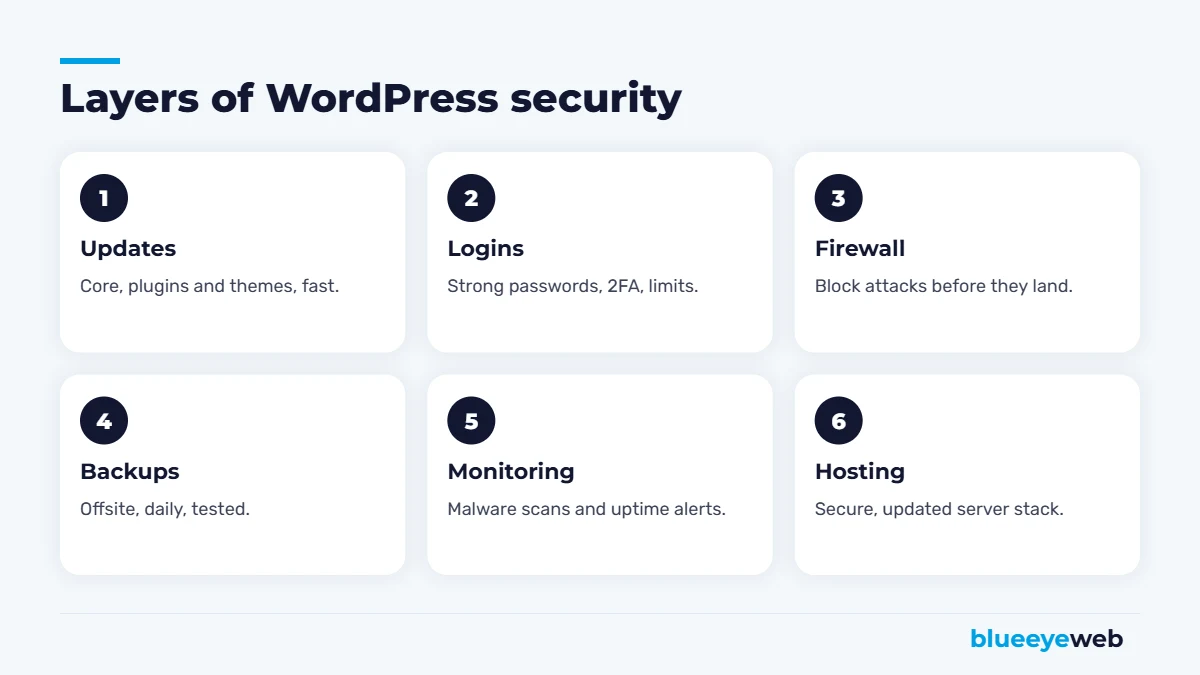
- The basics stop most attacks: fast updates, fewer plugins, two-factor login, a firewall, backups and monitoring.
- If you get hacked, act fast: lock down access, restore a clean backup, find the cause and fix it.
How Big Is the WordPress Security Problem?
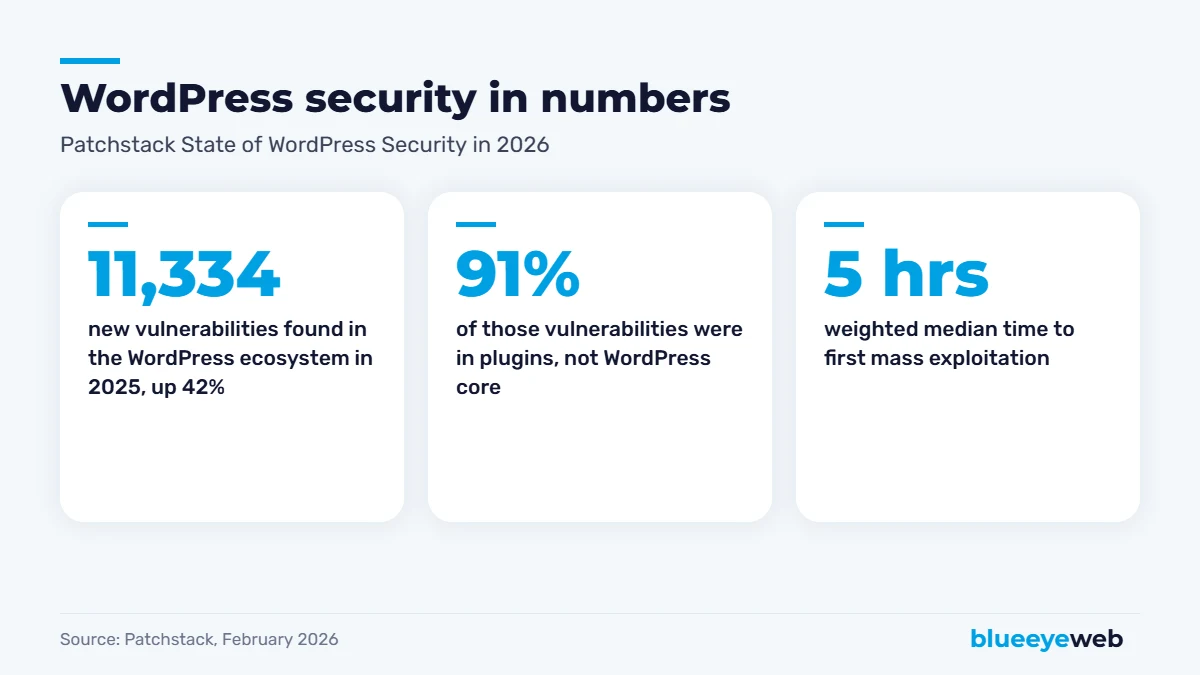
According to Patchstack’s State of WordPress Security in 2026 report, researchers found 11,334 new vulnerabilities in the WordPress ecosystem in 2025, a 42% jump over the year before. 91% were in plugins and the rest mostly in themes. WordPress core itself had only a handful, all low risk.
The more worrying number is speed. Patchstack found the weighted median time from disclosure to the first mass exploitation of heavily targeted vulnerabilities was about five hours. If you update plugins once a month, your site can spend weeks exposed to attacks that are already automated. And many vulnerabilities had no fix available from the developer when they were disclosed, which is why updates alone aren’t enough.
Why Small Business Sites Get Hacked
Most attacks aren’t personal. Bots don’t care whether you’re a bakery or a bank. They scan thousands of sites for known weaknesses and break into whatever is vulnerable. Once inside, attackers typically:
- Inject spam links or pages to boost their own search rankings.
- Redirect your visitors to scams or malware.
- Steal customer data, especially on WooCommerce stores.
- Use your server to send spam email or attack other sites.
- Lock you out and demand payment.
The fallout is real: Google may show a “This site may be hacked” warning, your hosting account can be suspended, your emails can land in spam, and customers lose trust. Recovering costs far more than preventing it.
The 15-Step WordPress Security Checklist
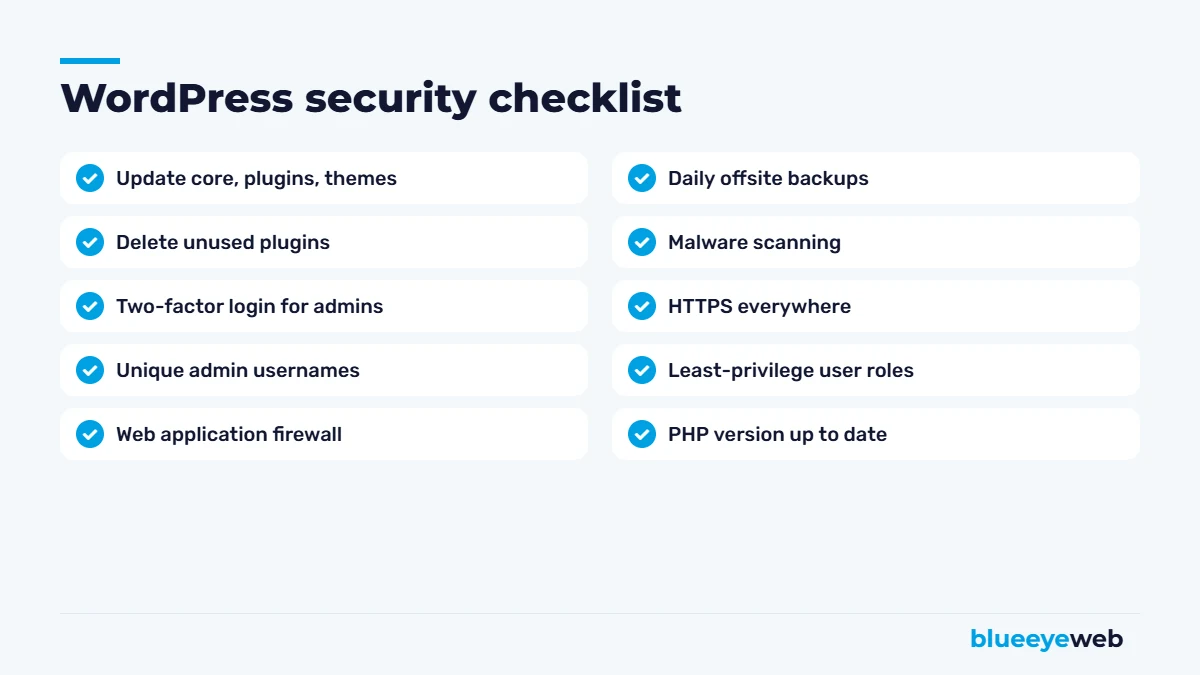
1. Update WordPress, plugins and themes quickly
This is the single most important step. Turn on automatic updates for minor WordPress releases and trusted plugins, and check for updates at least weekly. Test major updates on a staging site first if your site is complex.
2. Delete plugins and themes you don’t use
Deactivated plugins still sit on your server and can still be exploited. If you’re not using it, delete it. Fewer plugins also means a faster site.
3. Only install well-maintained plugins
Before installing, check when it was last updated, how many active installs it has, its reviews and whether the developer responds to support questions. Avoid “nulled” (pirated) premium plugins entirely. They often contain malware.
4. Use strong, unique passwords and a password manager
Every admin, editor and hosting account needs its own long, unique password. A password manager makes this painless.
5. Turn on two-factor authentication
Two-factor authentication (2FA) for every admin account blocks most password attacks, even if a password leaks.
6. Don’t use “admin” as a username
It’s the first username bots try. Use unique usernames and make sure your public author name isn’t your login name.
7. Limit login attempts
Stop bots from guessing passwords endlessly. Most security plugins and many hosts can limit attempts and block repeat offenders.
8. Give people only the access they need
Not everyone needs to be an administrator. Use Editor or Author roles where possible, and remove accounts for former staff and contractors right away.
9. Add a web application firewall
A firewall filters malicious traffic before it reaches your site, and the best ones can block attacks on known vulnerabilities even before you’ve updated a plugin. Options include security plugins, your host’s firewall or a service like Cloudflare.
10. Take daily offsite backups and test them
Backups are your safety net. Keep them off your server (cloud storage or your host’s separate backup system), keep several days of history and test a restore every few months.
11. Scan for malware and monitor changes
Regular malware scans and file change monitoring alert you if something suspicious appears. Uptime monitoring tells you within minutes if the site goes down. Our security monitoring service watches all of this for you.
12. Use HTTPS everywhere
An SSL certificate encrypts data between your visitors and your site. It’s essential for any site with logins, forms or checkout, and most hosts include it free.
13. Choose secure hosting and keep PHP updated
Cheap shared hosting with outdated software is a common weak point. A quality host keeps the server updated, isolates accounts, offers server-level firewalls and backups, and supports current PHP versions. Running an old PHP version is both a security and speed problem.
14. Harden WordPress settings
Disable the built-in file editor in the dashboard, set correct file permissions, protect the wp-config.php file and disable XML-RPC if you don’t need it. The official WordPress hardening guide covers these in detail.
15. Secure your forms and email
Add spam protection to contact forms, and set up SPF, DKIM and DMARC for your domain so attackers can’t easily send email pretending to be you. Our business email setup includes this.
Quick self-check: log in now and look at Dashboard > Updates and Plugins. If you see pending updates or plugins you don’t recognize or use, that’s where to start today.
WordPress Security Plugins: Do You Need One?
A good security plugin adds a firewall, login protection, malware scanning and alerts in one place. Popular options include Wordfence, Solid Security, Sucuri and Patchstack. They’re helpful, but they’re not magic. A security plugin can’t protect a site running ten outdated plugins, and stacking several security plugins often causes conflicts and slows the site. Pick one, configure it properly and combine it with the habits above.
WooCommerce Stores Need Extra Care
Online stores handle customer accounts, orders and payments, so the stakes are higher. Use a reputable payment gateway so card details never touch your server, keep WooCommerce and its extensions updated promptly, monitor for suspicious orders and new admin accounts, and back up the database more often than a brochure site. Deciding between platforms? Security responsibility is one of the big differences in our Shopify vs WooCommerce comparison.
A Simple WordPress Security Routine
Security works best as a habit, not a one-time project. Here’s a routine that keeps most small business sites safe without taking over your week.
Every week
Apply plugin, theme and WordPress updates. Glance at your security plugin’s alerts and confirm last night’s backup completed. If you run a store, scan recent orders and new user accounts for anything unusual.
Every month
Review your plugin list and delete anything you no longer use. Check user accounts and remove anyone who has left. Run a full malware scan and look at Google Search Console for security warnings or a sudden spike in strange indexed pages.
Every quarter
Test restoring a backup to a staging site, so you know it actually works. Check that your PHP version is still supported, review your hosting plan, and make sure two-factor authentication is still on for every admin.
Every year
Do a full review: audit plugins for abandoned ones that haven’t been updated in a long time, rotate important passwords and API keys, renew your domain and SSL well before they expire, and consider whether your theme or page builder still gets regular updates. If it doesn’t, plan a move before it becomes a problem.
Write the routine down and assign an owner. Most hacked sites we clean up didn’t fail because WordPress security is hard. They failed because nobody was clearly responsible for doing these small things regularly.
If you manage several WordPress sites, or you’d simply rather not think about it, this is exactly the kind of routine a care plan or maintenance partner should handle for you, with a short monthly report showing what was updated, backed up and checked.
Signs Your WordPress Site Has Been Hacked
- Google shows “This site may be hacked” or Chrome displays a red warning.
- Visitors are redirected to other websites, often only on mobile or from Google.
- You see pages, links or posts you didn’t create, often in other languages.
- New admin users appear that nobody on your team added.
- Your host suspends the account or warns about malware or spam.
- The site becomes suddenly slow or your traffic drops sharply.
What to Do If Your WordPress Site Gets Hacked
- Don’t panic, and don’t delete everything. You may need the evidence to find how attackers got in.
- Change every password: WordPress users, hosting, FTP/SFTP, database and email.
- Contact your host. Many can help, and some have clean backups you don’t know about.
- Restore a clean backup from before the infection, if you have one, then update everything immediately.
- If there’s no clean backup, clean the site: scan files and the database, replace WordPress core files, remove unknown admin users and reinstall plugins from official sources.
- Find and fix the cause. Usually an outdated plugin or a stolen password. If you skip this step, it often happens again.
- Request a review in Google Search Console once the site is clean, so warnings are removed.
- Put monitoring in place so you know immediately if anything changes again.
If your site handles customer data or payments, a breach may come with legal notification duties. Talk to your attorney and payment provider quickly.
DIY vs Managed WordPress Security
If you’re comfortable in WordPress and have the time, you can handle much of this checklist yourself. Many small business owners don’t, and that’s when sites quietly fall behind on updates for months. A managed care plan handles updates, backups, firewall, monitoring and fixes for a predictable monthly fee, usually far less than a single malware cleanup. Our website care plans cover exactly this, and our website maintenance cost guide explains what to expect.
Security is also bigger than your website. Email, laptops and passwords matter just as much, and Verizon’s Data Breach Investigations Report shows small businesses are frequent ransomware targets. For the full picture, see our IT maintenance and monitoring services.
Worried about your WordPress site?
We’ll run a free security check covering updates, plugins, logins, backups and malware, then fix what’s risky and keep your site protected with monitoring.
Frequently Asked Questions
WordPress core is very secure and maintained by a large security team. Most WordPress security problems come from outdated or poorly maintained plugins and themes, weak passwords and cheap hosting.
Vulnerable plugins. Patchstack found 91% of new WordPress vulnerabilities in 2025 were in plugins, and attackers often begin exploiting them within hours of disclosure.
A good security plugin helps with firewall protection, login security and malware scanning, but it only works alongside regular updates, strong logins, backups and good hosting. Use one well-configured plugin, not several.
Check at least weekly and apply security updates as soon as possible. Enable automatic updates for trusted plugins and minor WordPress releases, and test major updates on staging for complex sites.
Change all passwords, contact your host, restore a clean backup or clean the site, update everything, find and fix the cause, then request a review in Google Search Console and add monitoring.
Basic protection can be free if you handle updates and use free tools yourself. Managed care plans with updates, backups, firewall and monitoring typically cost a predictable monthly fee that is usually much less than a malware cleanup.